Outreach Raspberry Pis
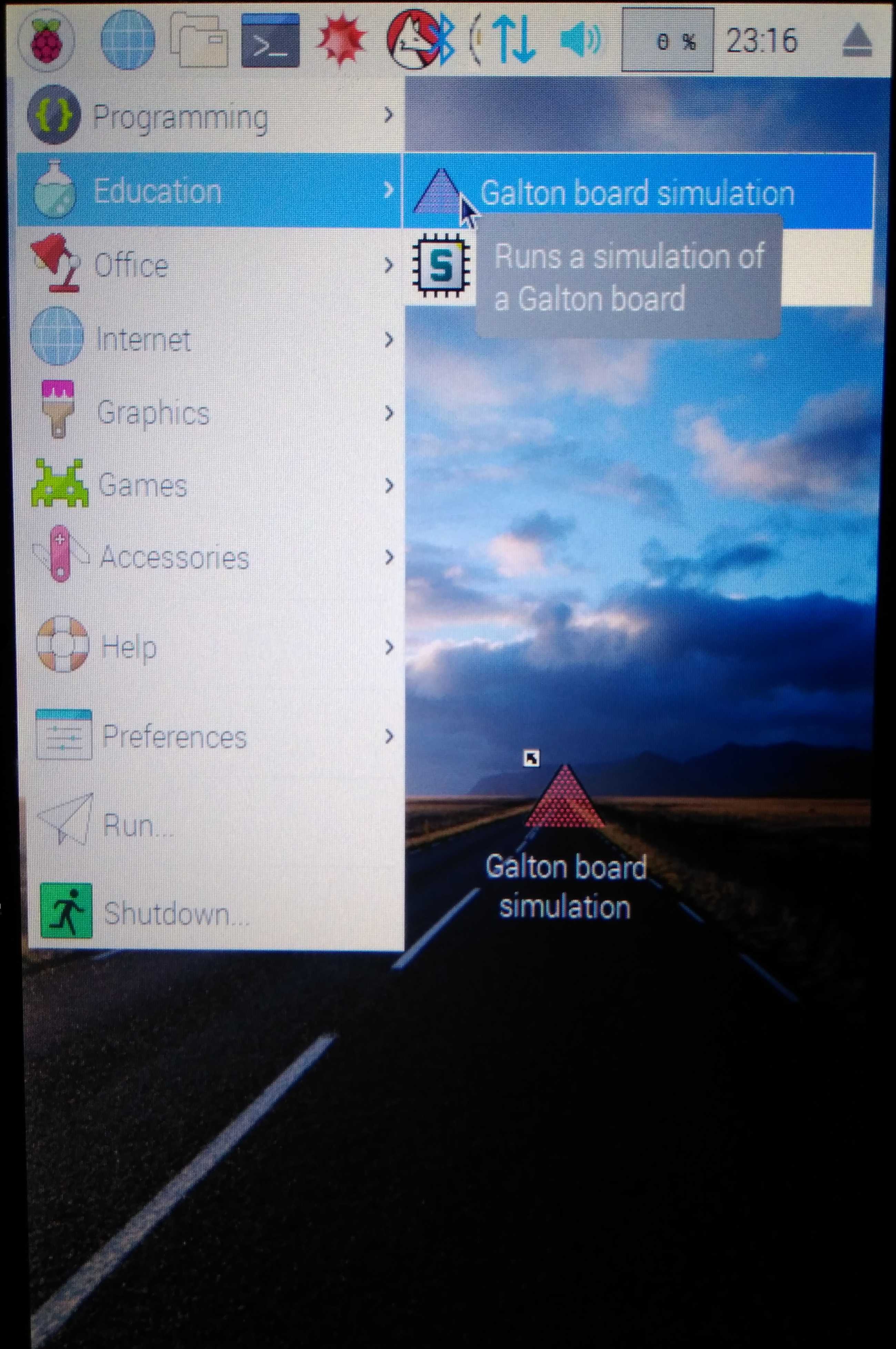
Today was the first day of Celebrate Science 2019. Whilst taking a break from running our exhibit, I had a look at our Pis.
Meet the Pis
There are nine in total.
Four have stands in the horizontal/landscape configuration. Yesterday, Henry and I found that three of these run the NuOdyssey game locally. Apparently it was written by somebody called Sunil, anybody know that story? You just start the browser which automatically brings up the game as its starting page.
The fourth horizontal one, which is visually distinguishable from the others, runs the Galton server: you interface the Pi with the Galton board via USB and it records balls passing through the light gates. I found that this all worked: it recorded the physical Galton board and graphed the results in realtime. The Galton server Pi has also been set up to remotely control the other Pis. It has scripts to remotely shutdown, reboot, and start and stop simulations. I found that this was not working, though.
The other five are in the vertical/portrait configuration and run the Galton simulation. I had noticed that one of these has nothing installed on it, so I installed the Galton simulation software on it. I decided to record the process here since it would have been very useful for such a resource to exist for me to use! And also because I’m waiting for a Pi to finish updating itself…
Getting online
Firstly, the Pis don’t seem to be able to connect the university wifi, probably because they don’t support the security protocol — maybe something we could fix by installing a new package?
You can, however, log into the wifi network TheCloud@Durham - although you may have to manually navigate to //service.thecloud.net to complete login - or plug in an ethernet cable.
Once online, I ran a sudo apt update && sudo apt -y full-upgrade (then reboot) for good measure.
This took a long time.
Then I ran sudo apt update && sudo apt install emacs vim to keep everyone happy.
Portrait mode
Next, I had to configure the Pi to operate in portrait mode. The screen can be rotated by
echo "echo rotate_display=3 >> /boot/config.txt" | sudo sh
sudo reboot
which just appends a screen rotation command to the Pi’s boot configuration file under sudo privileges and restarts the Pi. The touchscreen, however, remains configured for a landscape configuration. To fix this behaviour, I had to persistently adjust the coordinate transformation matrix for the FT5406 touch controller with
echo "xinput set-prop 'FT5406 memory based driver' 'Coordinate Transformation Matrix' 0 -1 1 1 0 0 0 0 1" >> ~/.xsessionrc
sudo reboot
It took me forever to figure that one out!
Getting the Galton code on the Pi
With all that out of the way, I could move onto installing the Galton software. I made a folder for git repos
mkdir ~/git
cd git
then cloned the GaltonBoard repo
git clone https://github.com/eidoom/GaltonBoard.git
cd GaltonBoard
and installed dependancies (recall that James has updated the software for Python 3)
sudo apt install python3 python3-numpy python3-matplotlib python3-scipy
before trying the simulation, ./galtonsim, and it worked!
I also automated the installation of the application shortcut to the desktop and application menu (with an icon), which can be run with ./install-sim.sh.